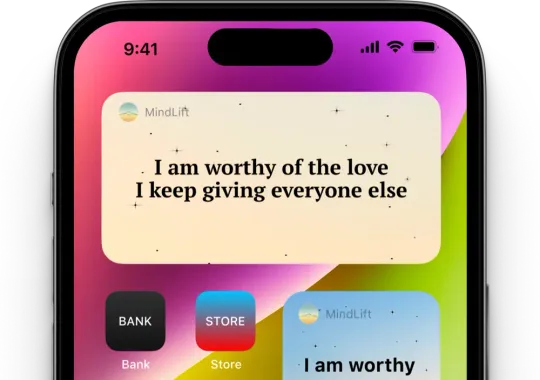
The moments you most need a steadier thought are the moments you're least likely to open an app. The widget solves that by not requiring you to. Your saved words sit on the screen you already unlock forty times a day.
What It Shows
The widget rotates through the cards you've saved to Favorites — reframes you kept, affirmations that landed, and any words you wrote yourself. Nothing appears on it that you didn't choose.
It's available on iPhone and Android, it's part of MindLift's free-to-start core, and it works without an account. Tapping it opens the app.
Set up Favorites first. The widget has nothing to show until you've saved a few cards — three is a good starting rotation.
Why a Widget Does More Than the App Alone
People rarely stop using MindLift because it didn't help. They stop because opening it is one more decision on a day already full of them. The widget removes the decision.
Repetition without effort
A reframe only rewires anything if you meet it more than once. The widget puts your saved words in front of you dozens of times a day without asking you to open anything or remember to practice.
It reaches you before the spiral
The hardest moments rarely come with enough presence of mind to open an app. The widget doesn't wait for you to decide to get help — it's already on the screen you unlock reflexively.
It competes with the doomscroll
The home screen is where your attention goes by default. Putting one of your own steadier thoughts next to the apps that pull you under changes what you see first.
❤️
Save
A reframe helps. You tap the heart, and it joins Favorites.
→
⚙️
Set
Settings → Home Screen display → "Show from Favorites".
→
🔁
Rotate
The widget cycles through your saved cards.
→
👁️
Glance
You meet your own words every time you unlock.
↩ And back around: tapping the widget opens MindLift, where the next reframe worth keeping gets saved.
The widget loop — four steps, set up once.
How to Add the Widget
About two minutes, once. Pick your phone:
On iPhone or iPad
1
Save at least 3 cards to your Favorites in MindLift first — the widget pulls from that collection.
2
Go back to your iPhone or iPad home screen and press and hold on any empty space until the app icons start to jiggle.
3
Tap the + button in the top-left corner to open the widget gallery.
4
Search for "MindLift" or scroll to find it in the app list, then tap it.
5
Swipe between the available sizes and pick the one you want, then tap "Add Widget".
6
Drag it where you'll actually see it — ideally on your first home screen, near the apps you open without thinking.
7
Tap "Done" in the top-right corner.
On Android
1
Save at least 3 cards to your Favorites in MindLift first — the widget pulls from that collection.
2
Press and hold on any empty space on your home screen.
3
Tap "Widgets" in the menu that appears at the bottom of the screen.
4
Scroll to find MindLift, or use the search field at the top of the widget picker.
5
Press and hold the MindLift widget, then drag it onto the home screen position you want.
6
Release, and resize it by dragging the handles if your launcher supports it.
Android launchers vary — Samsung One UI, Pixel Launcher, and others word this menu slightly differently, but the path is always: long-press the home screen, find Widgets, then MindLift.
Choosing What Rotates On It
By default the widget can draw from all MindLift content. To narrow it to your own collection:
Save at least 3 cards to your Favorites
Go to Settings → Home Screen display
Select "Show from Favorites" instead of "Show all"
Your saved cards will now rotate on the widget and in the app
The full list of display options lives on the Settings page of this guide.
What to Put in the Rotation
A widget you stop noticing isn't doing anything. Curation matters more here than anywhere else in the app:
1
Three to five cards, not thirty
A rotation you actually recognize does more than a feed you tune out. If every glance shows something new, your brain starts treating it like wallpaper.
2
Pick the ones that survived a hard day
Not the most inspiring lines — the ones that were still usable at your worst. Those are the ones worth seeing on repeat.
3
Favor your own words
Cards you wrote yourself in Favorites tend to hold up longer on a widget than curated ones, because they already sound like you.
4
Swap them when they go quiet
When a card stops registering, it's done its job. Remove it from Favorites and let something you need now take the slot.
When the Widget Actually Does Its Work
The first unlock of the day
Before email, before notifications — one line you already know is true for you.
Mid-spiral phone checks
When you pick up your phone to escape a thought, the widget is what you land on instead of a feed.
3 a.m.
The hour you're least able to argue with your own thinking, and least likely to go hunting through an app for help.
If Something Looks Wrong
The widget is empty or shows placeholder text
This usually means Favorites is empty or has fewer than 3 cards. Open MindLift, save a few affirmations or reframes with the heart icon, then return to your home screen.
I can't find MindLift in the widget list
Open the MindLift app at least once after installing or updating it — the system only registers a widget after the app has run. If it still doesn't appear, restart your phone and check the widget gallery again.
The same card keeps showing
Both iOS and Android control how often widgets refresh to save battery, so rotation isn't instant. Opening MindLift refreshes it. Having more saved Favorites also makes repeats less likely.
It shows content I didn't save
Go to Settings → Home Screen display and choose "Show from Favorites" instead of "Show all". That restricts the widget to your own collection.
One line, where you'll actually see it.
You don't need a practice, a streak, or a spare ten minutes. You need the thought that helped you last Tuesday to be in front of you the next time the same spiral starts. That's the entire job of the widget — and it takes two minutes to set up.